Creating a pie chart in Google Sheets is a simple and effective way to visualize data and make it easier to understand. Whether you are presenting data for a school project, business report, or personal use, pie charts can help convey information in a clear and visually appealing way.
In this article, we will guide you through the steps to create a pie chart in Google Sheets. With just a few clicks, you can transform your data into a colorful and informative chart that will impress your audience.
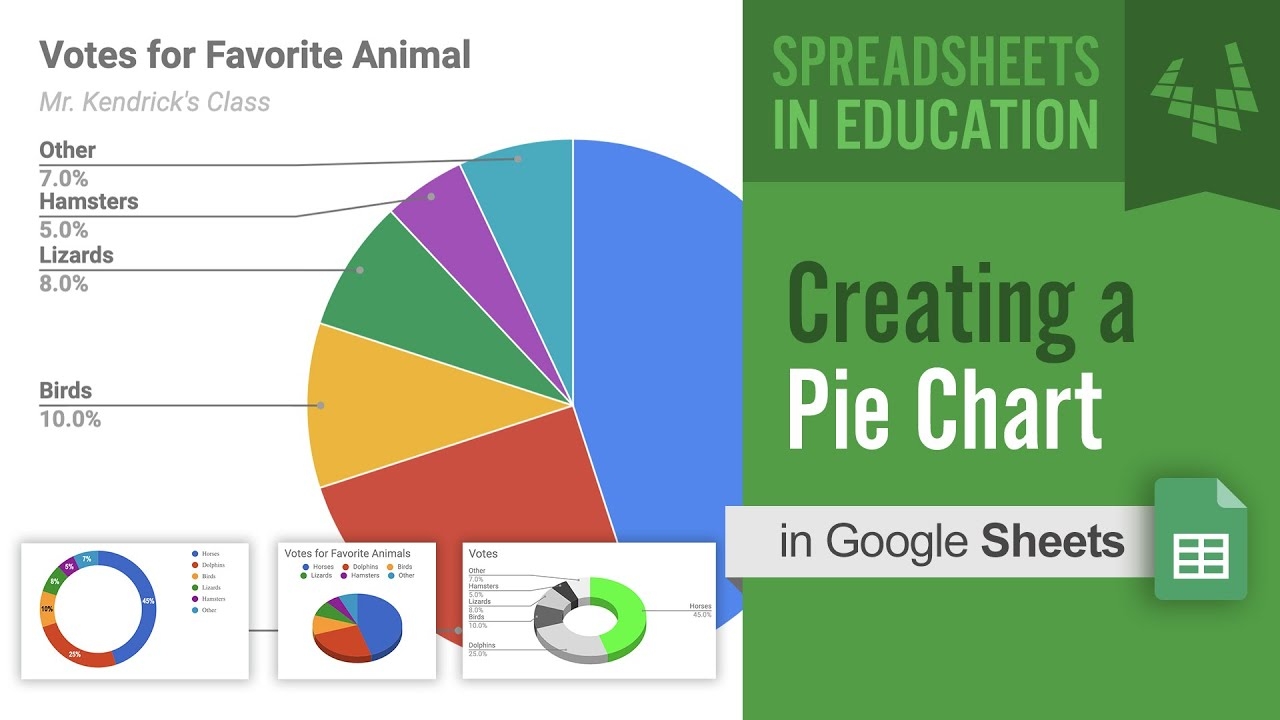
How to Make a Pie Chart in Google Sheets
To create a pie chart in Google Sheets, follow these easy steps:
1. Open your Google Sheets document and select the data you want to include in the pie chart. Make sure your data is organized in columns or rows with labels to represent different categories.
2. Click on the “Insert” tab in the top menu and select “Chart” from the dropdown menu. This will open the “Chart Editor” on the right side of your screen.
3. In the “Chart Type” section of the Chart Editor, select “Pie chart” from the list of available chart types. Your data will automatically be displayed in a pie chart format.
4. Customize your pie chart by adjusting the colors, labels, and other settings in the Chart Editor. You can also add a title and a legend to make your chart more informative.
5. Once you are satisfied with the appearance of your pie chart, click “Insert” to add it to your Google Sheets document. You can then resize and move the chart to fit your document layout.
With these simple steps, you can create a professional-looking pie chart in Google Sheets that will enhance your data presentation and make it easier for your audience to understand the information you are sharing.
In conclusion, making a pie chart in Google Sheets is a quick and easy way to visualize data and present it in a clear and engaging manner. By following the steps outlined in this article, you can create a visually appealing chart that will impress your audience and help them better comprehend the information you are sharing.