Pie charts are a great way to visualize data in a clear and easy-to-understand format. Google Sheets makes it simple to create pie charts from your data, allowing you to present information in a visually appealing way. In this article, we will guide you through the steps to make a pie chart in Google Sheets.
1. Enter your data into a Google Sheets spreadsheet. Make sure to include the labels for each data point and the corresponding values. For example, if you are creating a pie chart to show the distribution of sales by product, you would have one column for the product names and another for the sales figures.
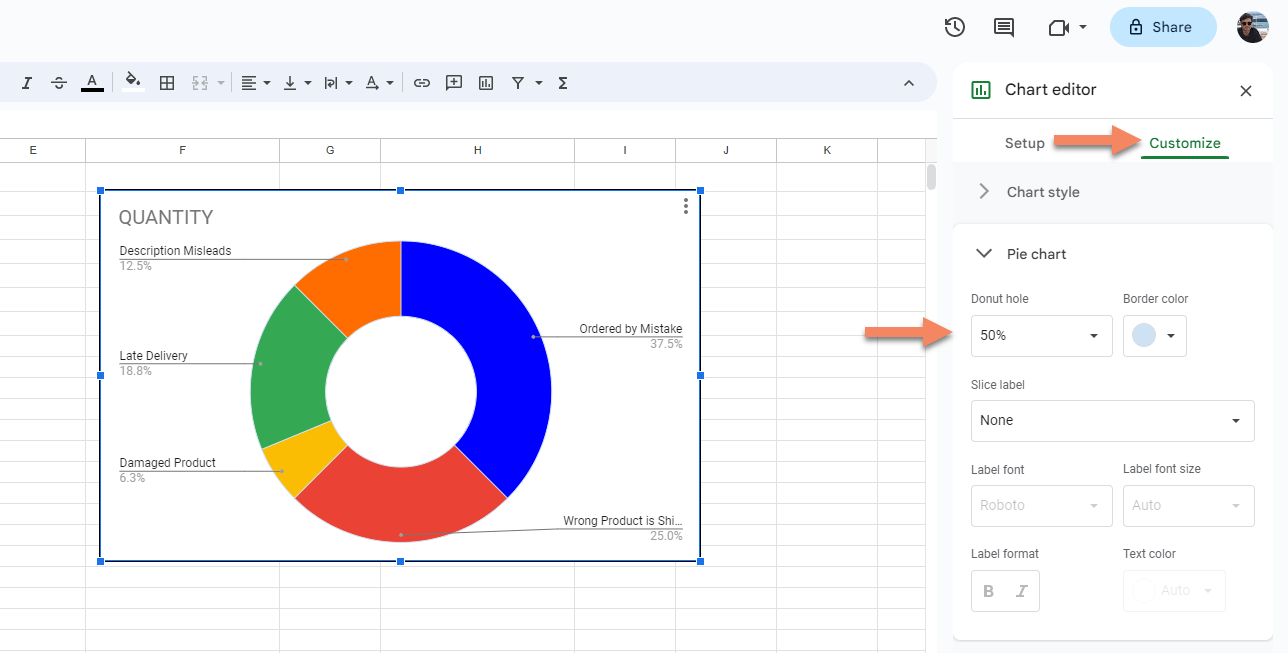
2. Select the data you want to include in the pie chart. Click and drag to highlight the data range that you want to visualize. Make sure to include both the labels and values in your selection.
3. Click on the “Insert” menu at the top of the Google Sheets interface. From the drop-down menu, select “Chart.” This will open a sidebar on the right-hand side of the screen with chart options.
4. In the Chart editor sidebar, click on the “Chart type” drop-down menu and select “Pie chart.” You will see a preview of the pie chart based on your selected data. You can customize the chart further by adjusting the colors, labels, and other settings.
5. Once you are satisfied with the appearance of your pie chart, click the “Insert” button in the Chart editor sidebar. The pie chart will be inserted into your Google Sheets spreadsheet, ready to be shared or exported.
Creating a pie chart in Google Sheets is a quick and easy way to visualize your data and communicate key insights. By following these simple steps, you can create professional-looking pie charts to enhance your presentations and reports.